Run a Scenario and Analyze Results
Run Scenario
When your scenario editions are complete, you can click the purple "Run" button at the top center of the screen (#1 below). When running a scenario, the latest available data will be queried from ProdX, meaning, that if your constraints, settings, or topology don't change day-to-day, you can simply rerun this scenario day after day for updated results.
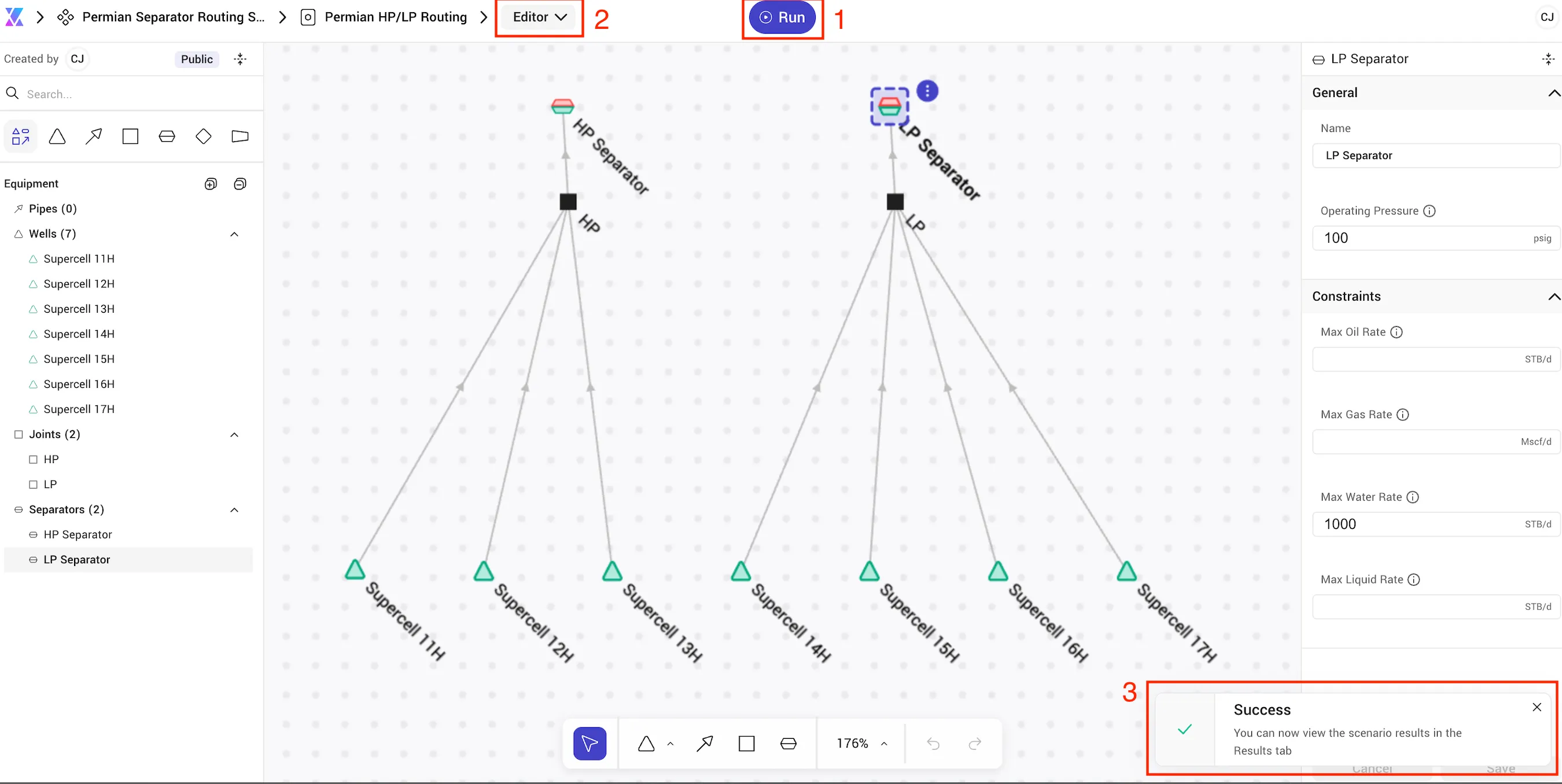
When the scenario completes you will see a toast message in the bottom right of the screen (#2) above. Once the scenario has completed, you can use the dropdown in the breadcrumb to switch to the "Results" view (#3 above).
If the scenario encountered any errors during execution, the toast message in the bottom right of the screen will display an error (#2 above). In most cases this is due to pipes/edges created in the wrong direction for production networks. Other common errors include orphaned wells and wells without any daily production.
View Results
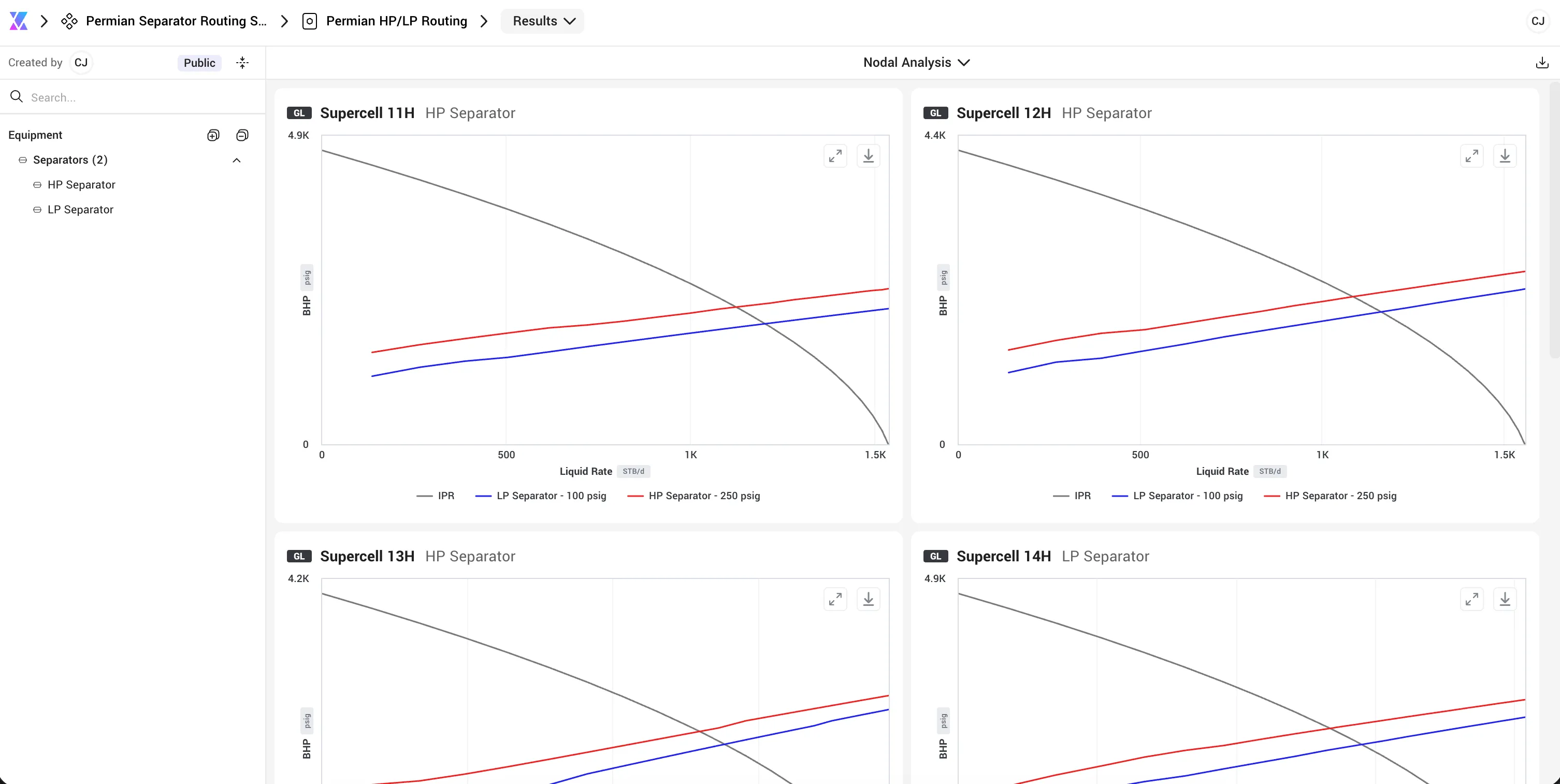
The default results view for High Pressure Low Pressure Routing is a gallery of nodal plots at each operating pressure. These show the current IPR and a VLP for each separator operating pressure. You can filter to a specific separator (current routing) using the menu on the left.
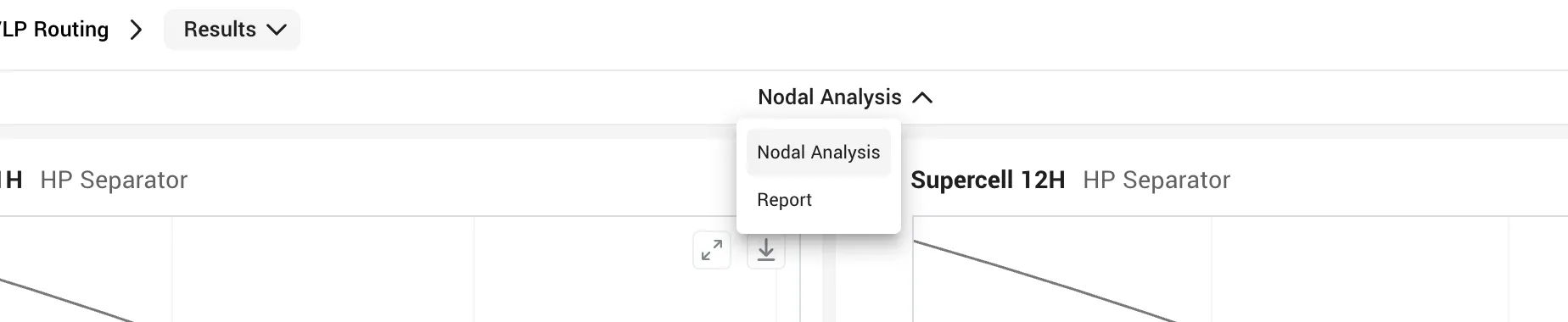
Above the nodal plots, a the title bar shows a dropdown with "Nodal Analysis" selected. You can click there to switch to a tabular results view called "Report".
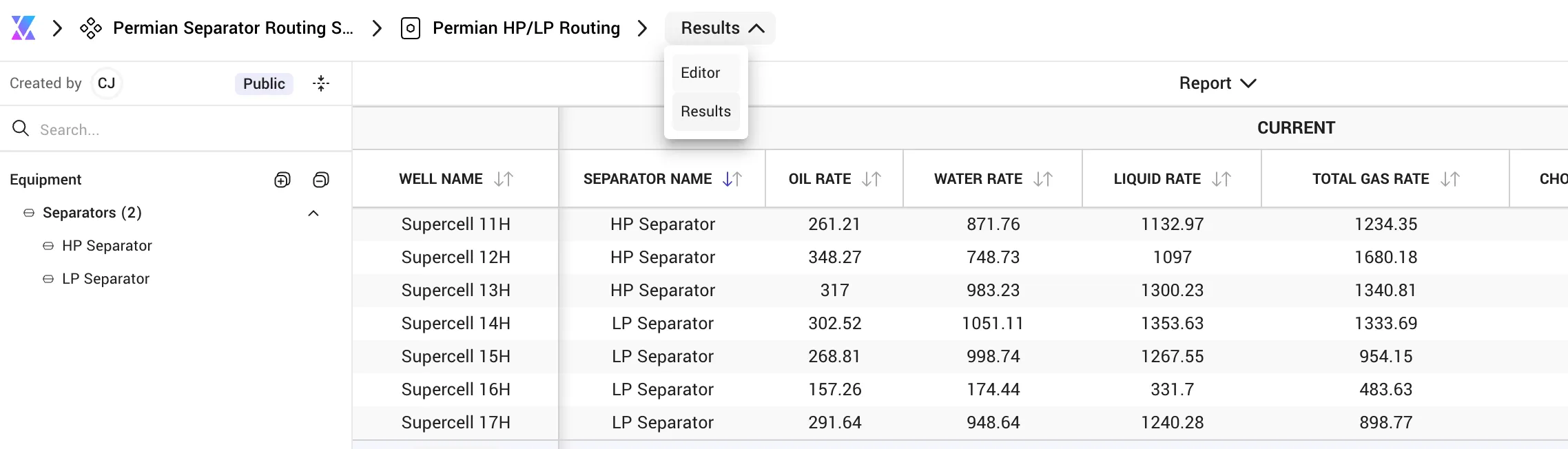
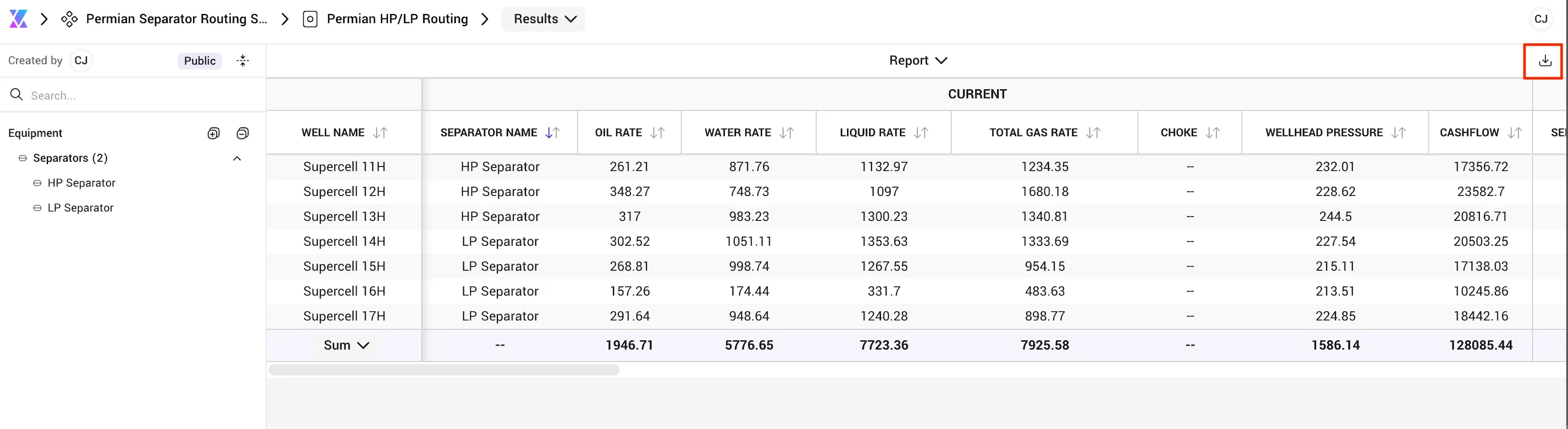
The report view shows current operations, optimized routing, and results for each operating pressure for each well. Like the "Nodal Analysis" view, you can filter to a specific separator (current routing) from the menu on the left.
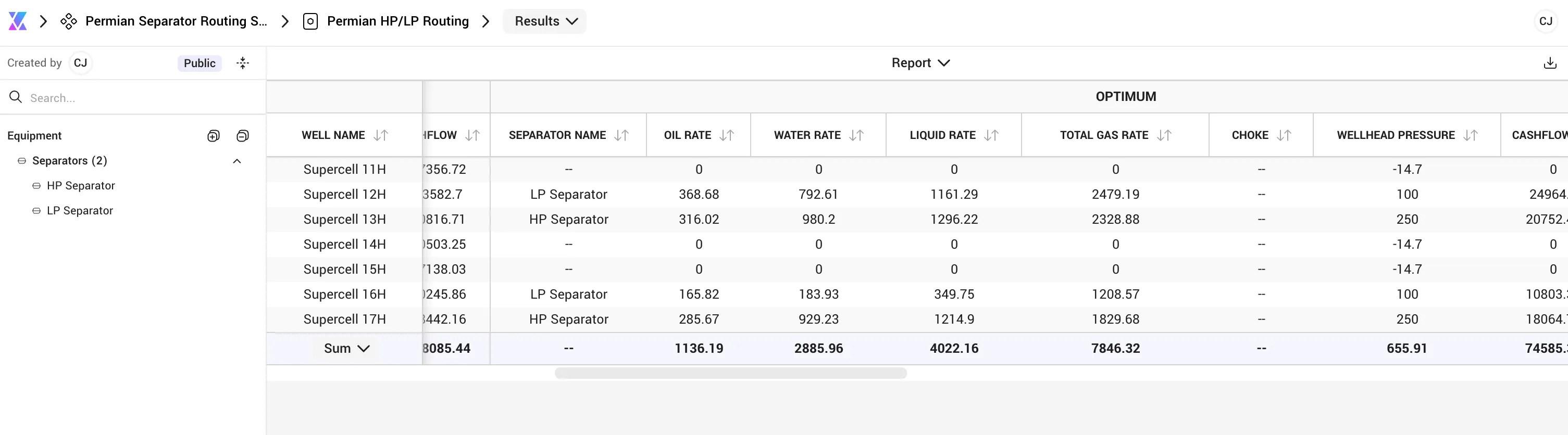
Well which show a "--" under optimum separator name indicate that the well had to be shut in to abide by the configured constraints.
The download button in the top right allows you to export the table.
Once you are finished analyzing results, you can use the navigation dropdown in the breadcrumb to return to the editor, or use the Xecta "X" icon on the left side of the breadcrumb to return to the dashboard to create additional networks or scenarios.